How it works
One drawing. Two spaces. Nothing to install.
This is a tour of the editor: what each part of the screen does, how model space and paper space relate, what runs in your browser and what runs on ours, and what actually happens when you press Save.
Anatomy
The screen, part by part.
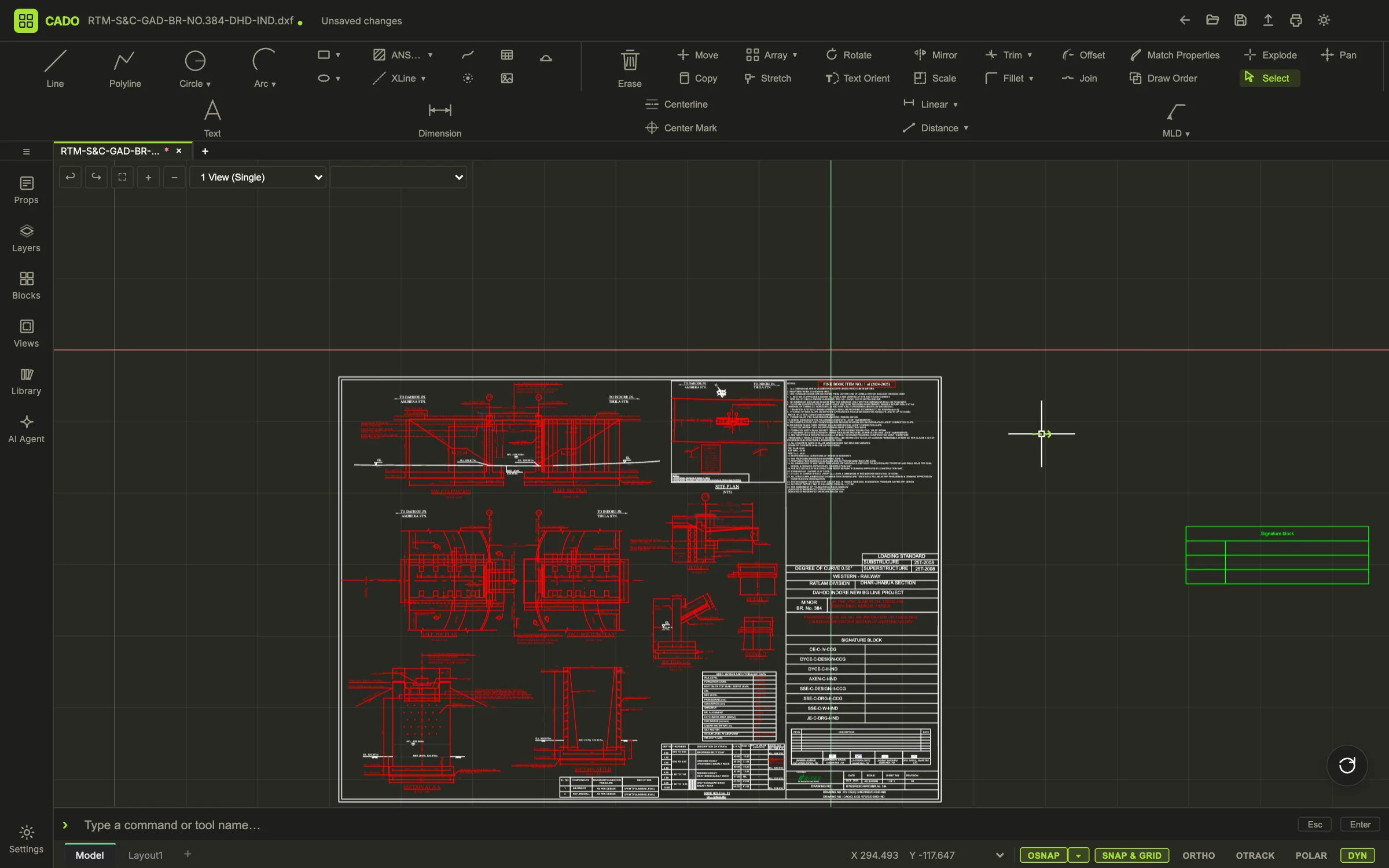
This is a real screenshot of the editor with a railway bridge general arrangement open. Pick a part on the left, or a marker on the picture.
Model space and paper space
Draw once at full size. Print it as many ways as you need.
The same distinction AutoCAD makes, kept on purpose: geometry lives in the model, sheets frame it.
01
Model space: the drawing at full size
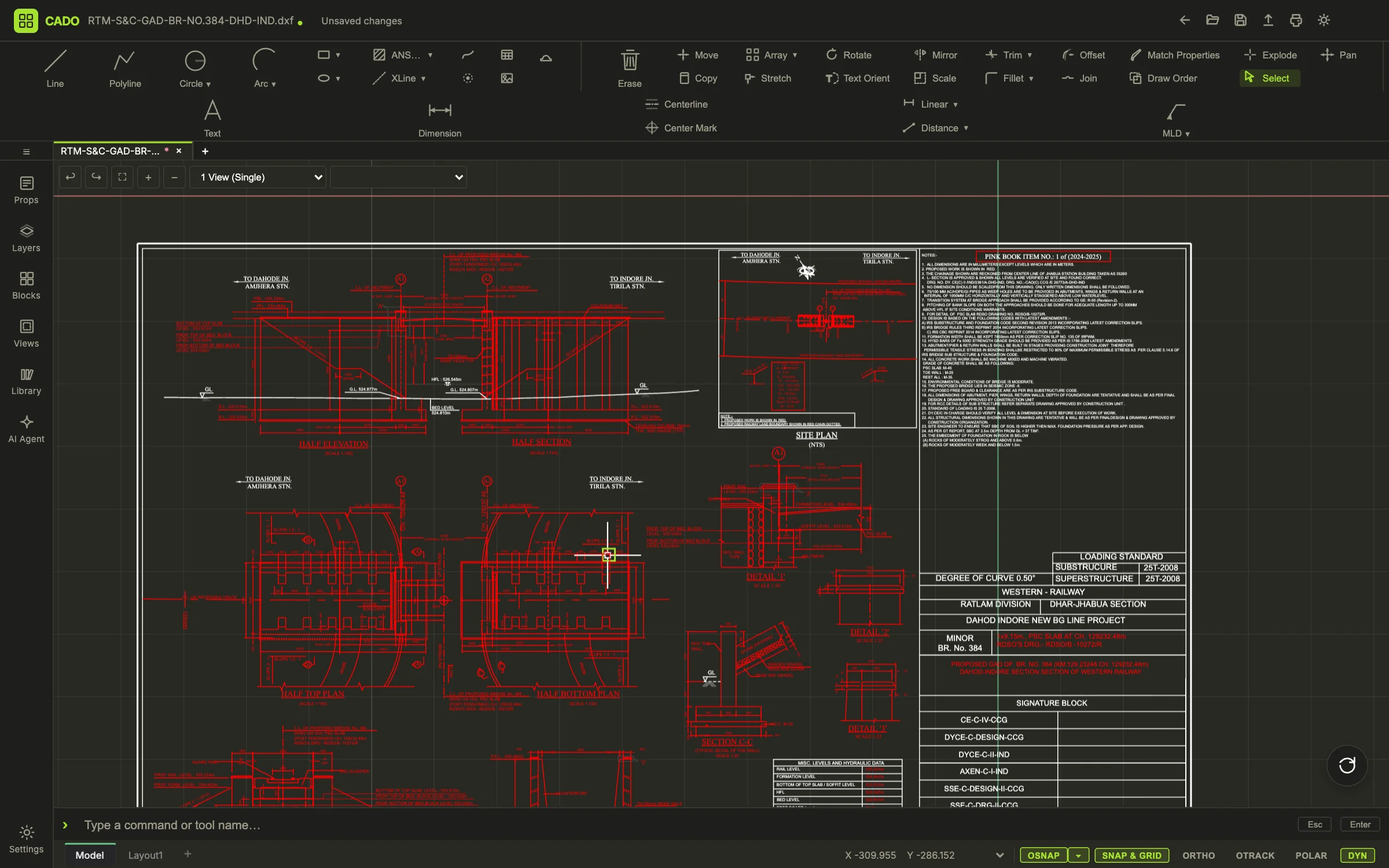
Everything is drawn in real units, one to one. Layers carry colour, lineweight and linetype; blocks carry attributes; dimensions measure the geometry they are attached to. This is the only place geometry lives, however many sheets end up printing it.
02
Paper space: what gets printed
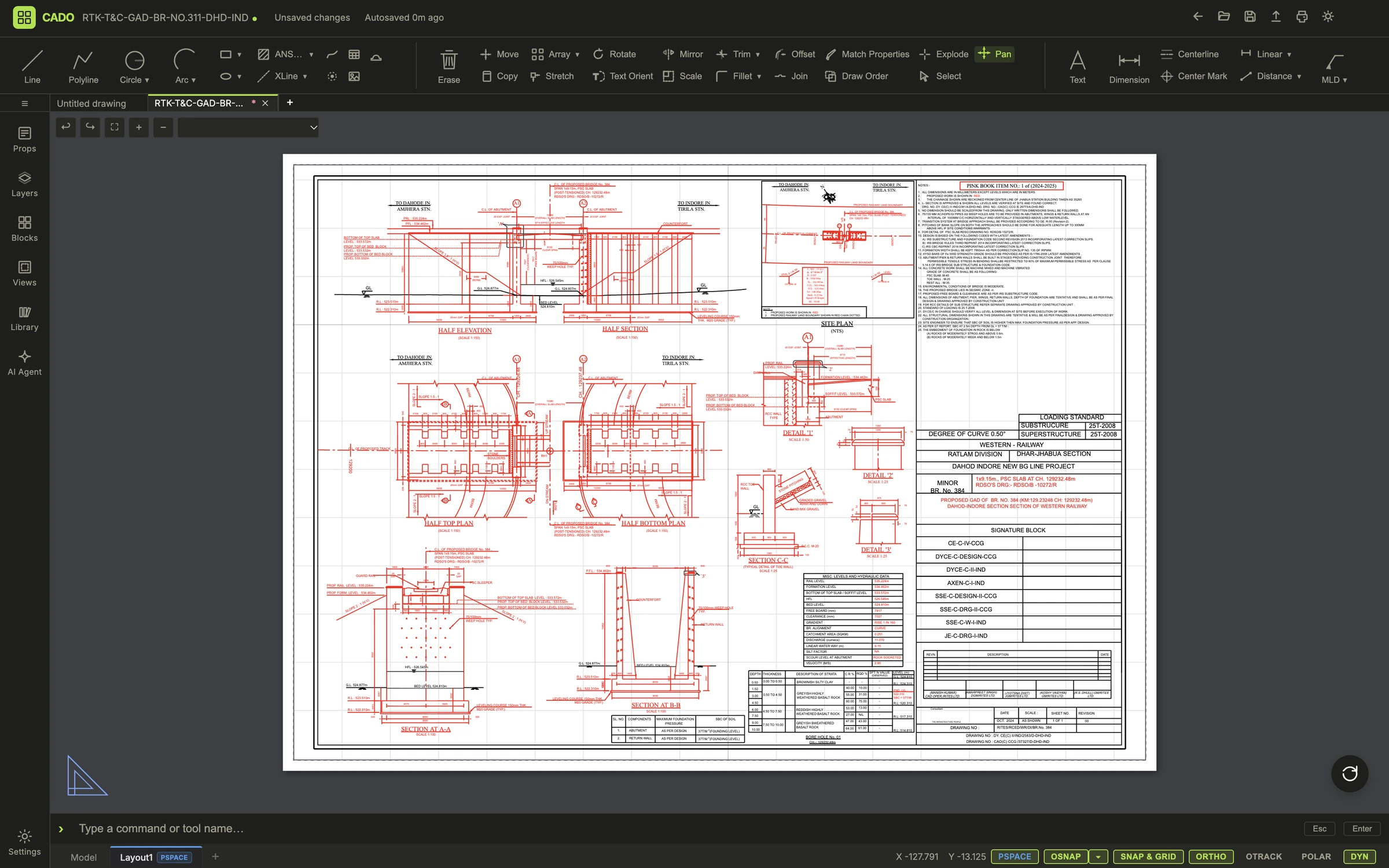
A layout is a sheet of a chosen size with viewports that frame regions of the model at a real scale, 1:50 on an A3 say. Title blocks, notes and the revision table are drawn on the sheet itself. Double-click into a viewport and every tool works through it (MSPACE); step out (PSPACE) and you are editing the sheet.
03
Plot: the sheet becomes a file
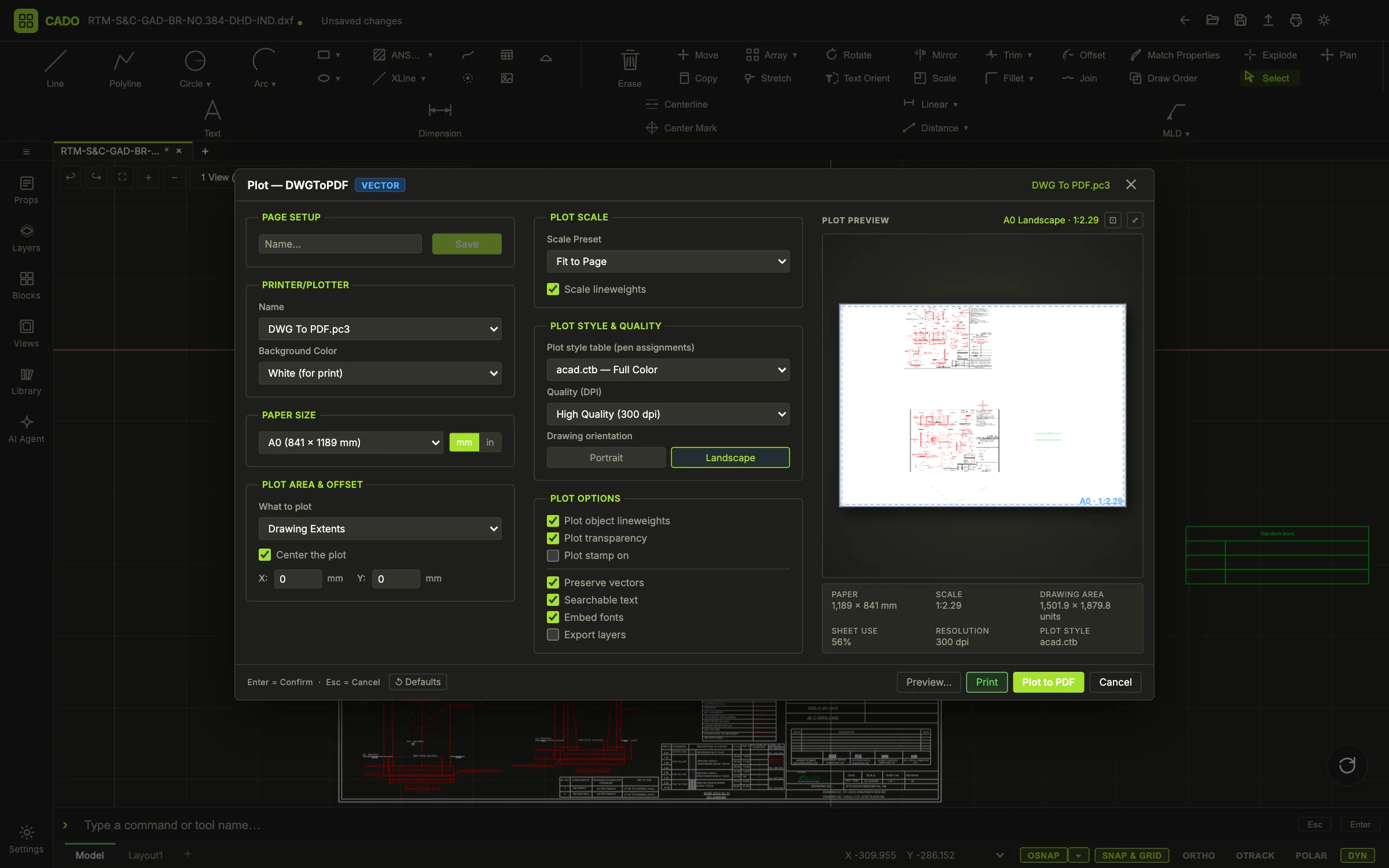
Plot a window, the extents, the display or the layout to PDF with real lineweights, searchable text and embedded fonts, or to SVG, PNG or JPG. Publish writes every layout to one PDF. Export DXF writes the drawing back out with its own layers, blocks, linetypes and dimension styles.
What runs where
The drafting happens on your machine. The server keeps the files.
Parsing, rendering, snapping, hatching and plotting are all client-side. The API exists for identity, file management and durability, so a large drawing never needs a large upload to draw a line.
Your browser
The editor
- DXF parser in a Web Worker
- Canvas renderer, spatial index, snaps
- Hatch, dimensions, blocks, layouts
- PDF, SVG, PNG and DXF writers
- Autosave, recovery snapshot, offline queue
- AI assistant and its local audit log
Our API
Identity, metadata, versions
- Accounts and organizations
- Folders, trash, share links
- Versioned saves with conflict checks
- Feedback and notifications
Object storage
The drawings themselves
- One object per saved version
- Thumbnails for the dashboard
- S3-compatible; yours to export
Sign-in is handled by Supabase Auth; the AI assistant talks to the model you configure directly from the browser. Read the architecture notes.
A save, end to end
What Ctrl+S actually does.
Saving is concurrency-safe by construction. Two people can never write the same version, and the loser of a race is told, not overwritten.
- PUT drawing · If-Match: 13You press Ctrl+SThe editor serialises the drawing to DXF and sends it with the version it loaded.
- 201 · version 14The API reserves the next versionA conditional update claims version 14 only if 13 is still current; then the payload is written to object storage under that version.
- 409 · VERSION_CONFLICTSomeone else saved firstThe condition fails, nothing is overwritten, and you are asked what to do: overwrite, save as a copy, or reload their version.
- IndexedDB snapshotMeanwhile, every 30 secondsA recovery snapshot of unsaved work is written to the browser, so a closed tab or a crashed machine loses at most half a minute.
- pendingSync: trueNo networkThe save is kept in the browser flagged as pending and you are told so; press Save again once you are online and it goes through.
DXF fidelity
If AutoCAD shows it one way and CADO another, that is our bug.
The importer is checked against AutoCAD on real issued drawings, not against a spec sheet. These are the things that used to go wrong and no longer do.
- Dimension values
- Per-dimension overrides in XDATA, including the plot-scale factor DIMLFAC, are read, so a span reads 10280 where AutoCAD says 10280, not the raw 68.53.
- Text and fonts
- Control codes and encodings are decoded; each text style resolves to its own font. Notes read as written.
- Lineweights and colours
- True lineweights on screen and on paper; ACI colours; white-on-dark defaults become black on the white sheet when plotting.
- Linetypes
- The drawing’s own LTYPE table and $LTSCALE are written on export, so dashed centrelines come back dashed.
- Layouts and viewports
- Viewports defined in the DXF are adopted with their camera and written back, so a sheet set survives the round trip.
- Large files
- Parsing runs in a Web Worker; a 36 MB general arrangement opens without freezing the tab.
See it with your own drawing.
Create an account, drop a DXF on the dashboard, and compare it with the original. That comparison is the product.
No install. No licence server. DXF export is free on every plan.